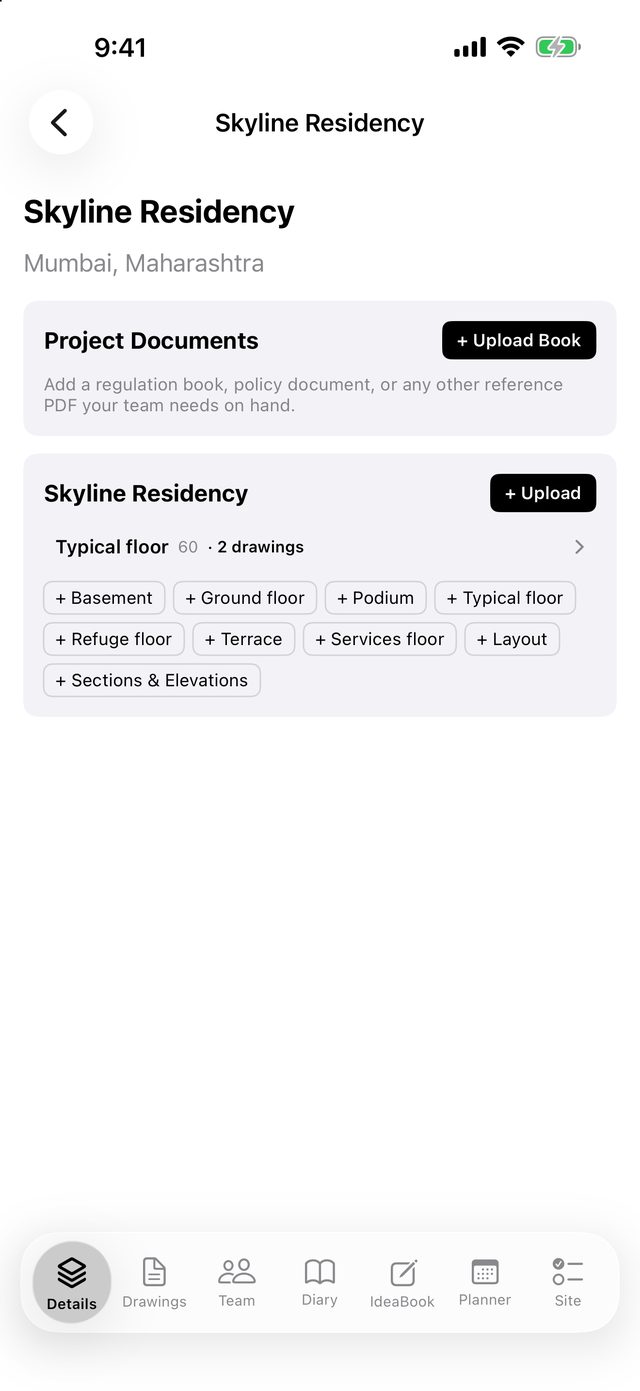
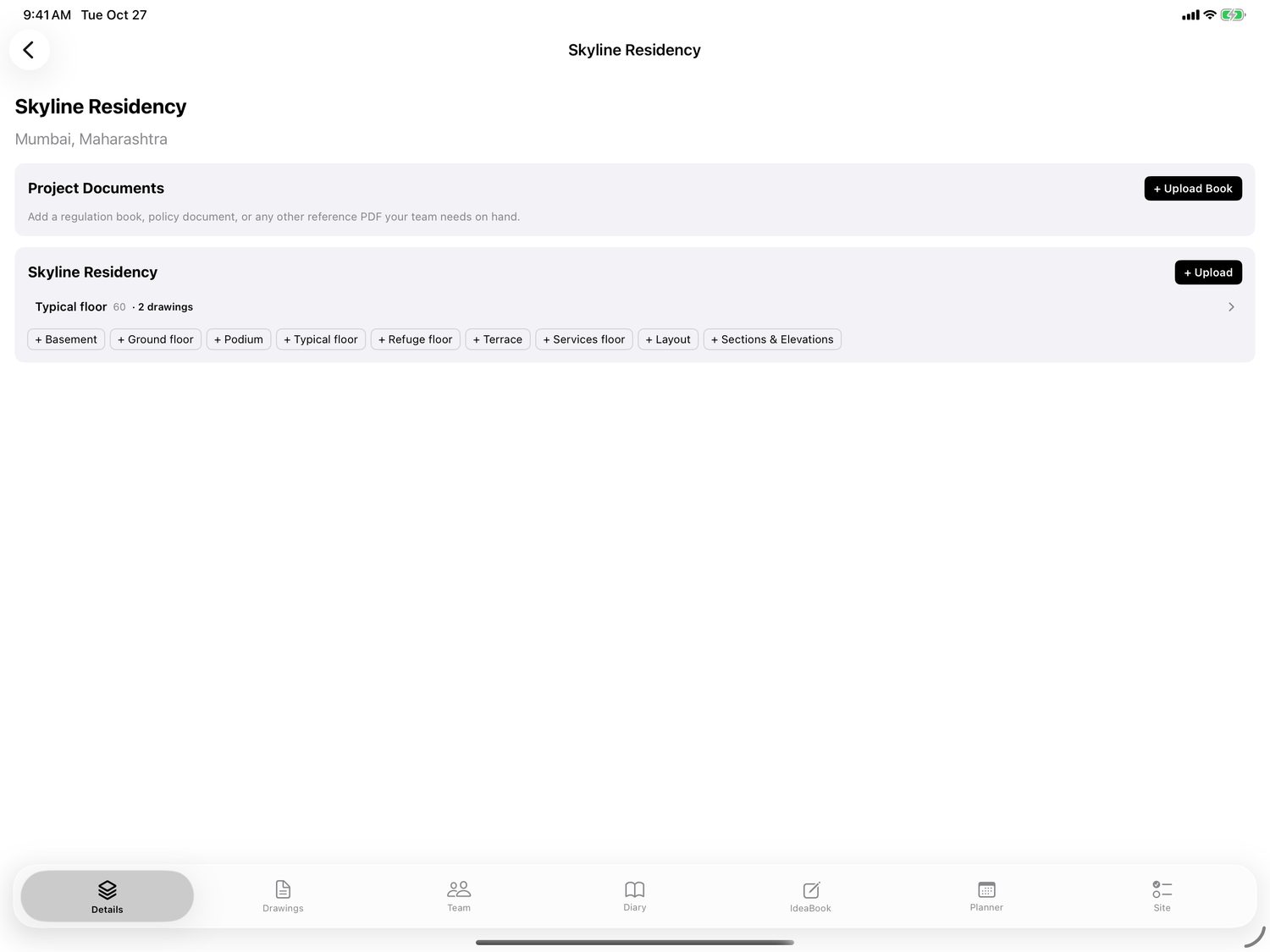
Every project, every building, every floor
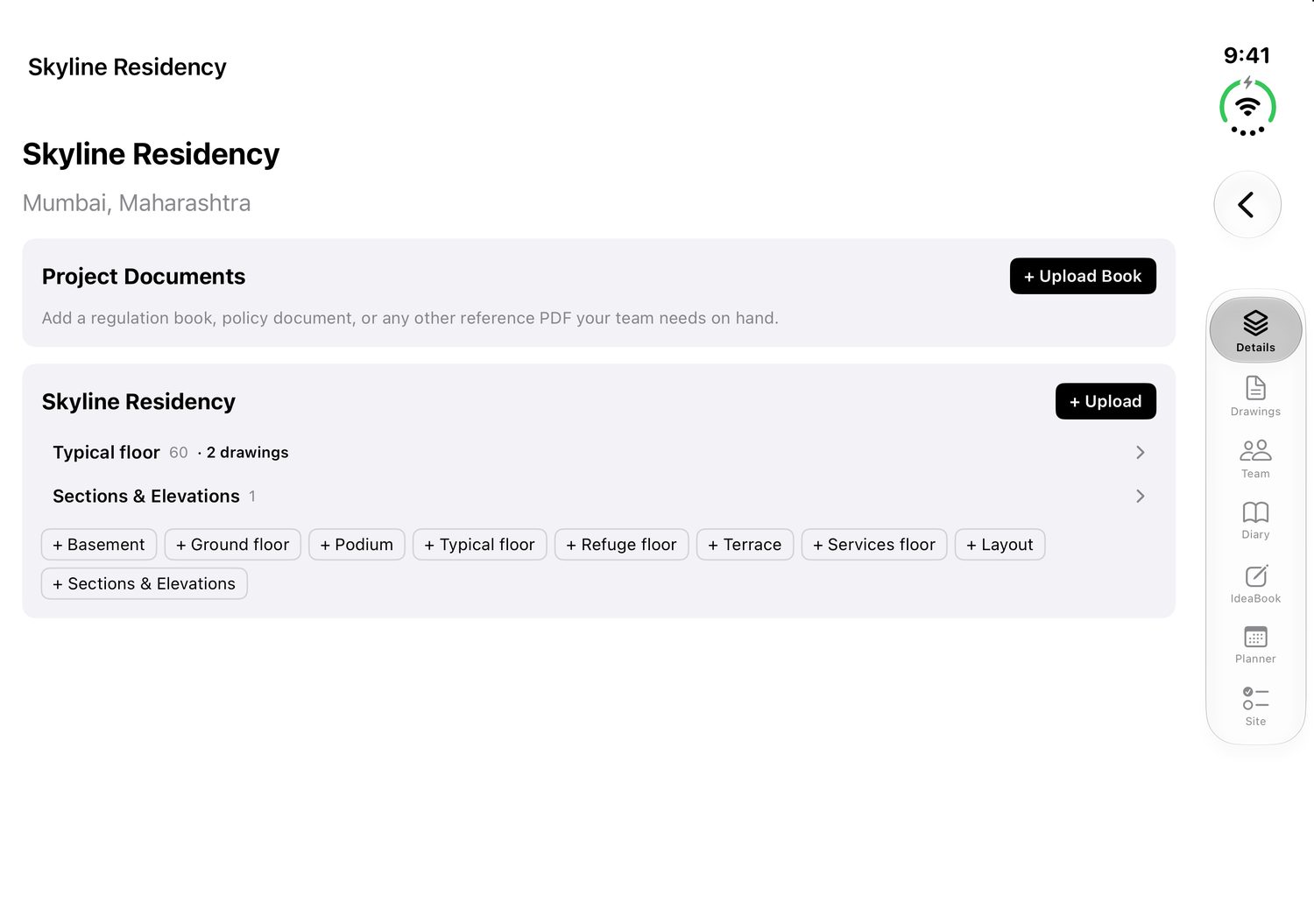
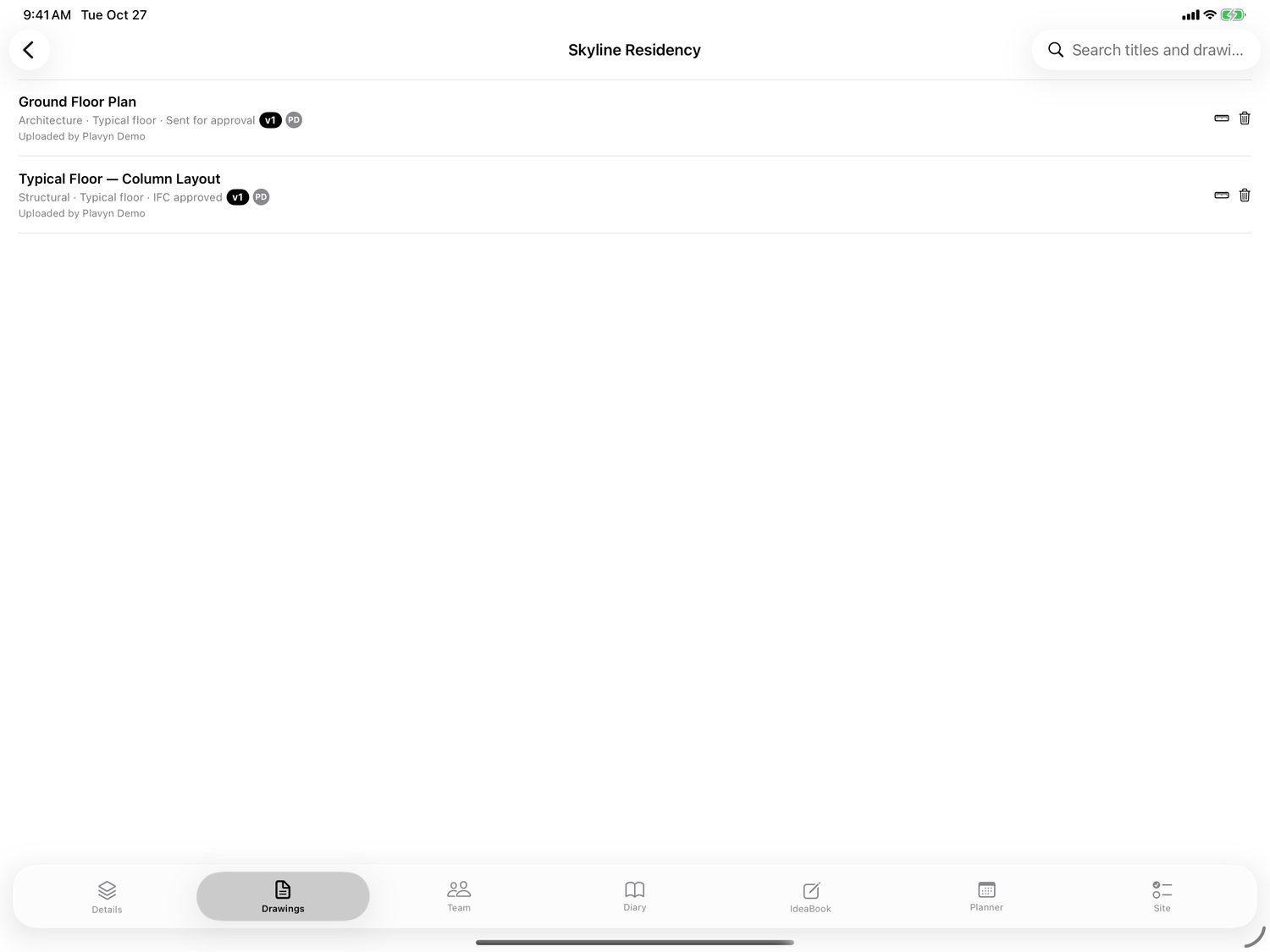
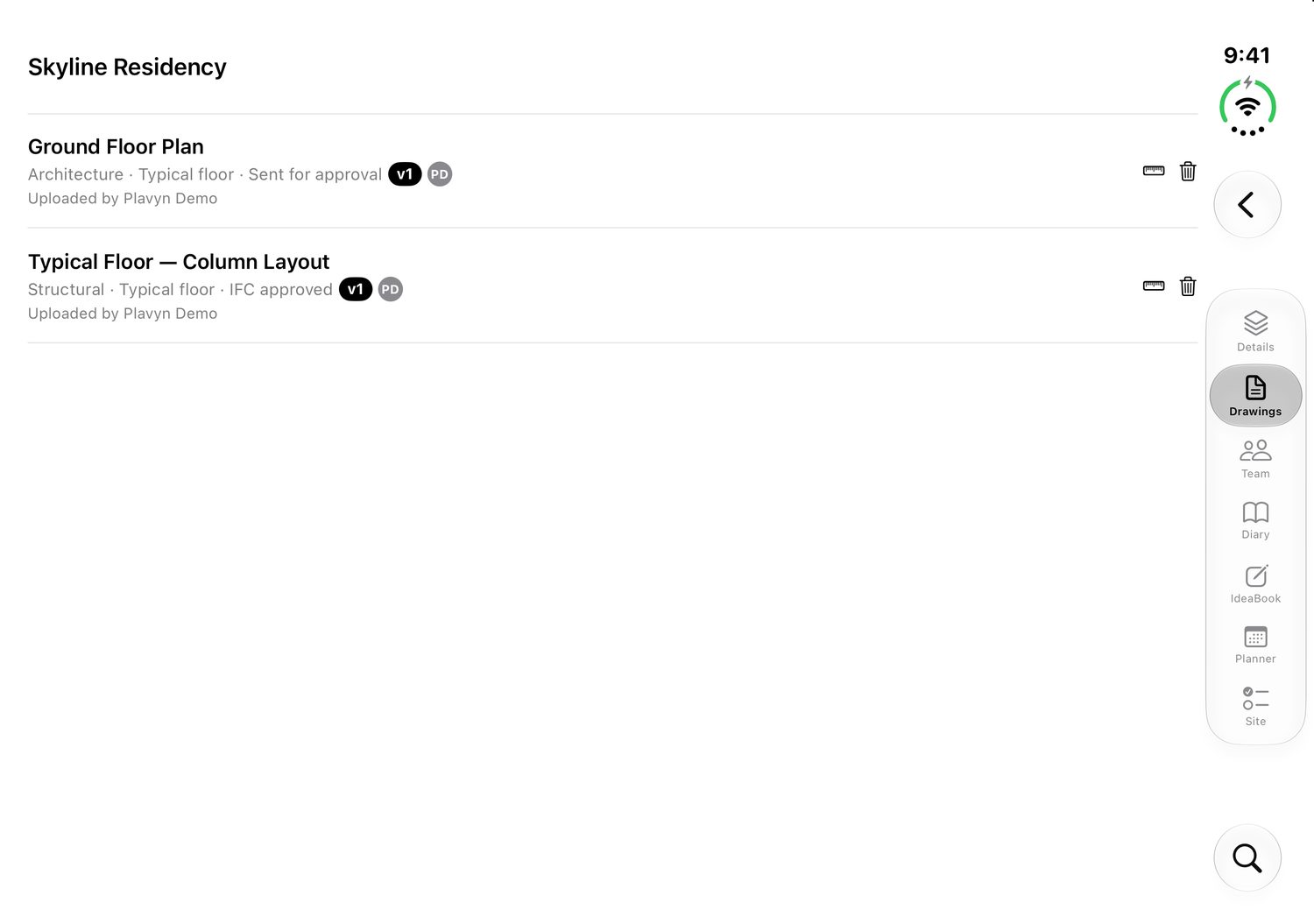
Open a project and see its buildings, floors, and drawing counts at a glance. Add basements, podiums, typical floors, layouts, and now Sections & Elevations — choose North, South, East or West for an elevation, or name a section, before you upload.
One current drawing — and search that reads inside it
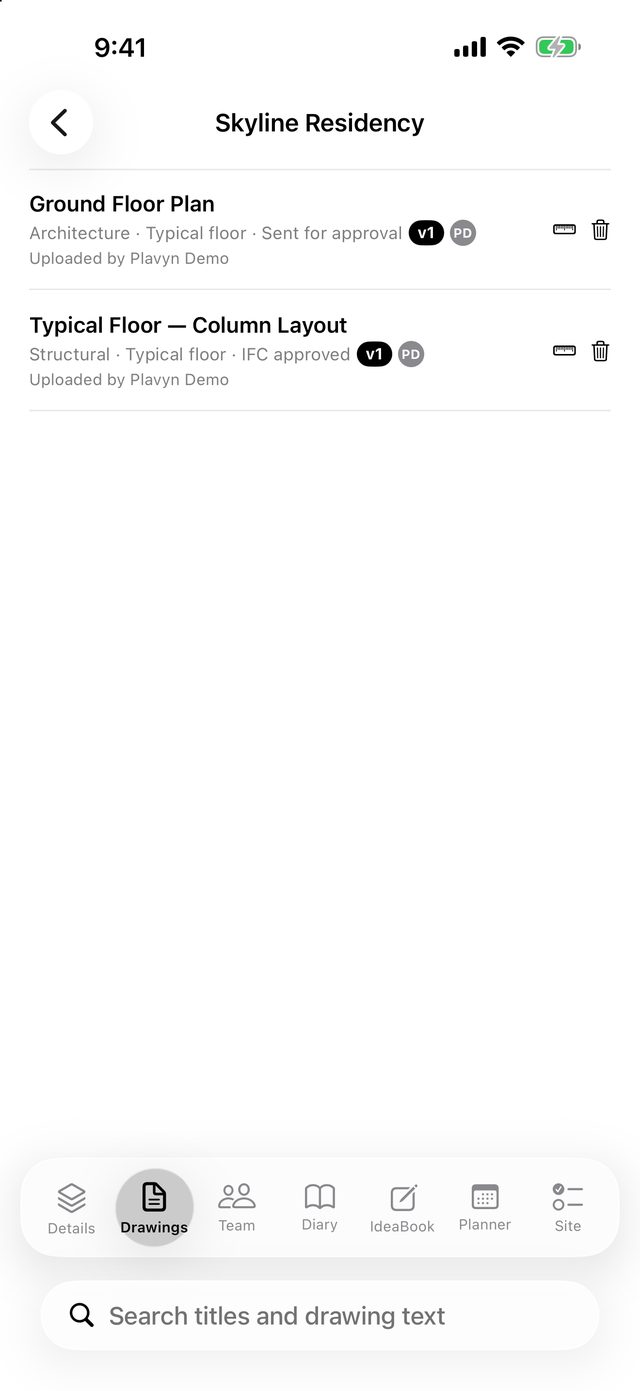
Every version of a sheet lives together and the current one is always first. Search by title or tag, or by the text inside your downloaded PDFs — room numbers, notes, dimensions — and jump to the page. Put two versions on top of each other to see exactly what changed — or any two drawings, like Architecture against Structure on the same floor, with a slider to sweep between them.
Measure on the sheet
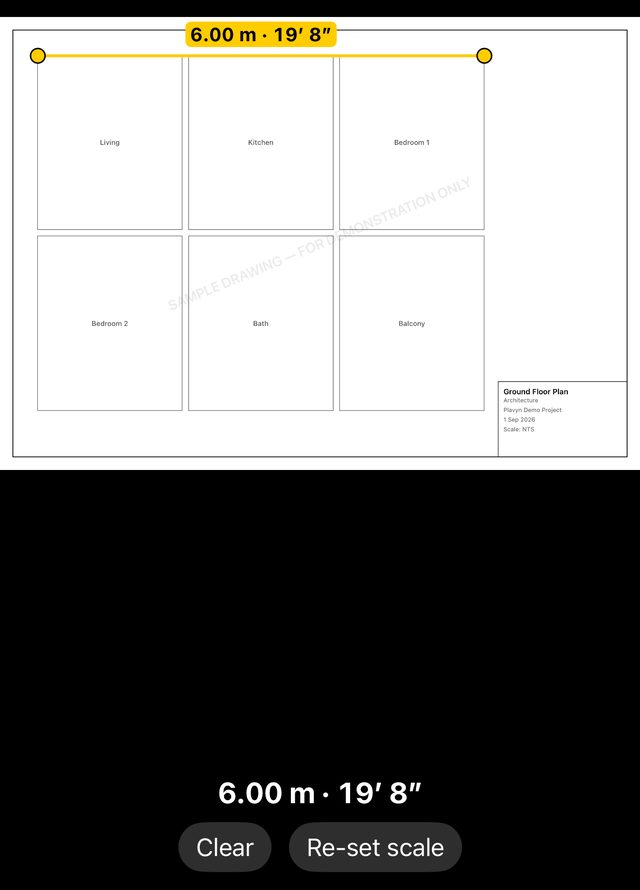
Draw a line along something of known length, type its real length in feet and inches or metres, and measure any distance on that sheet. Keep several measurements at once, lock lines horizontal, vertical or diagonal, choose dot, arrow, dimension or tick ends, and read feet and inches, metric, or both. The scale is saved with the sheet and shared with your team.
Pin a snag or an RFI to the exact spot
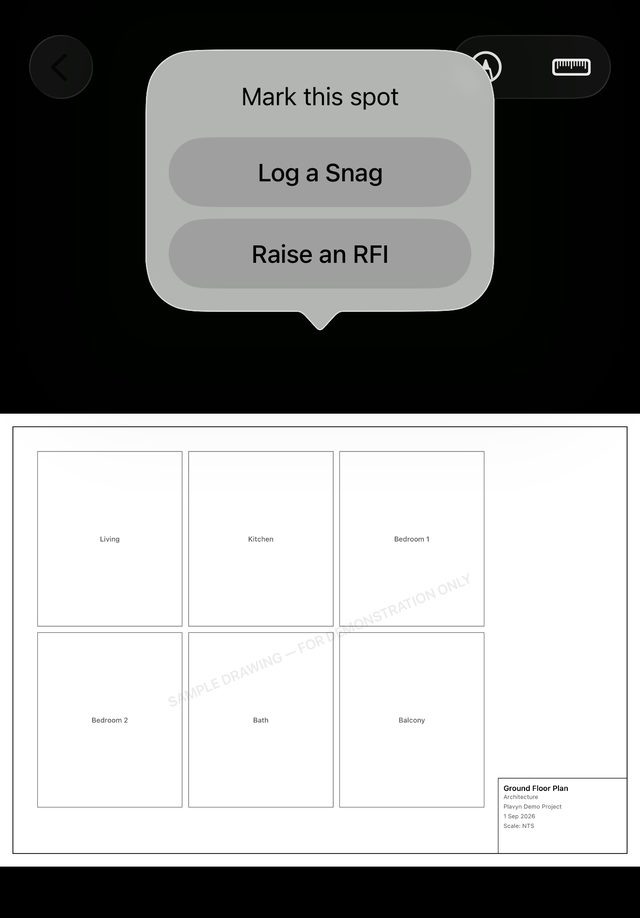
Press and hold anywhere on a drawing and choose Log a Snag or Raise an RFI. The pin sits on the sheet — coloured by kind and status — so anyone who opens the drawing sees what was raised, and where.
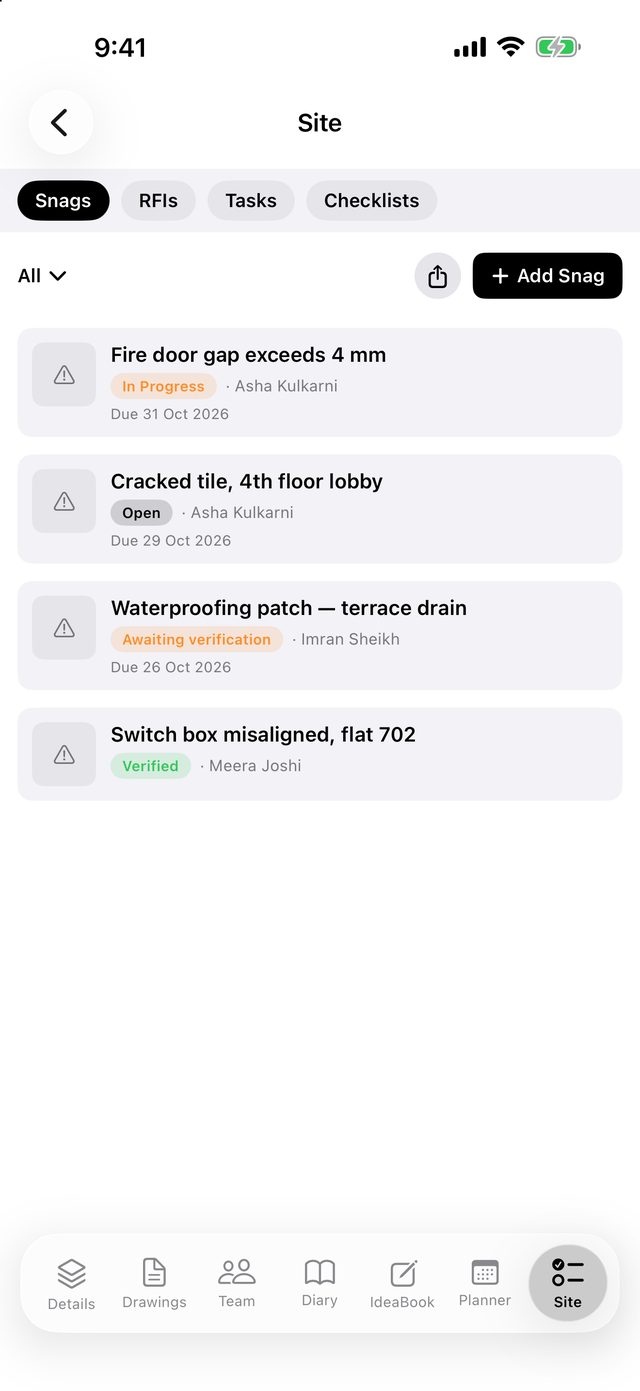
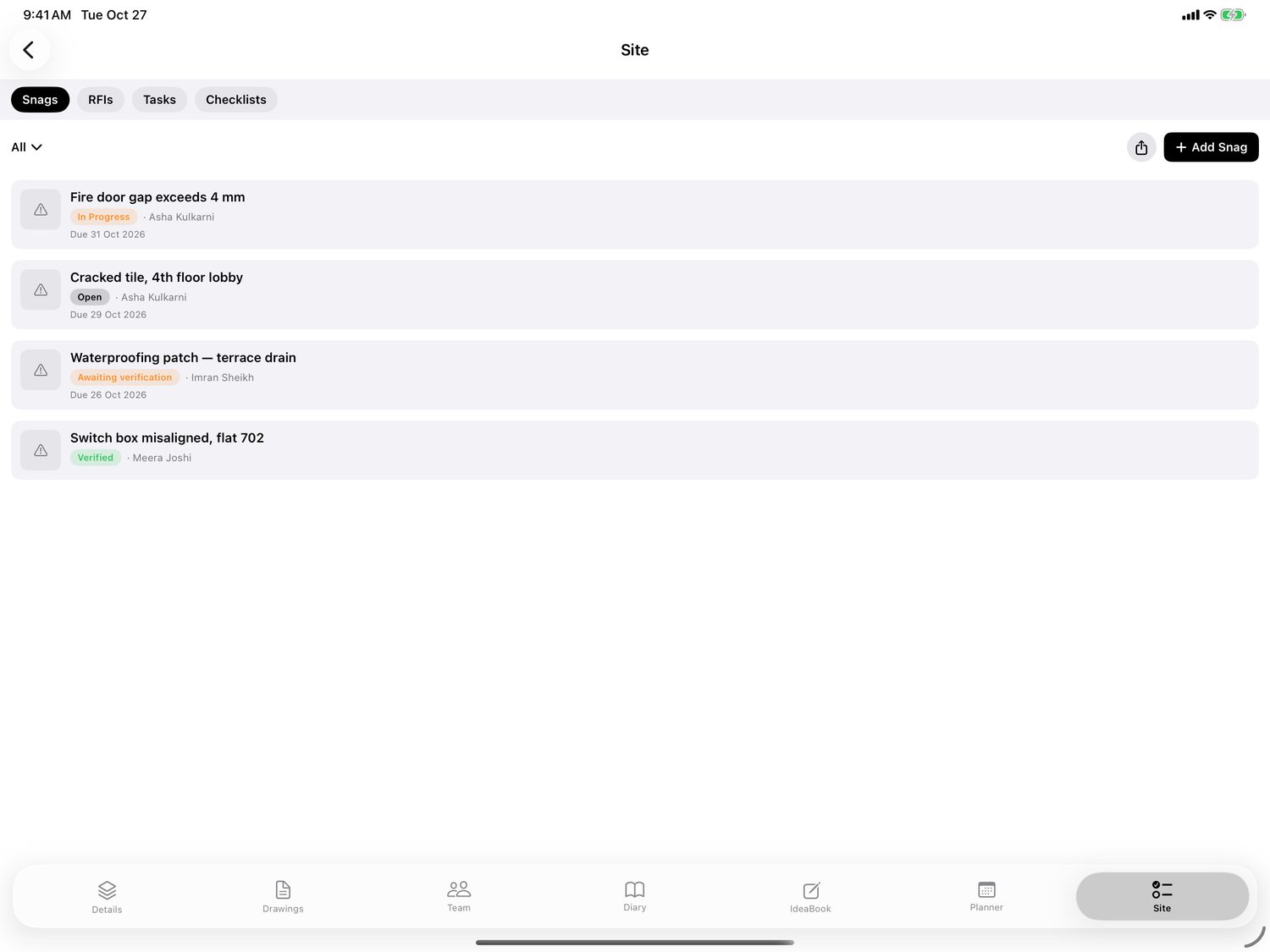
Snags that get signed off
Log a defect with photos, a priority, an assignee, a due date, and optionally its GPS position. When it is fixed it waits for verification — the person who raised it, or the project owner, confirms the fix, and the team is notified.

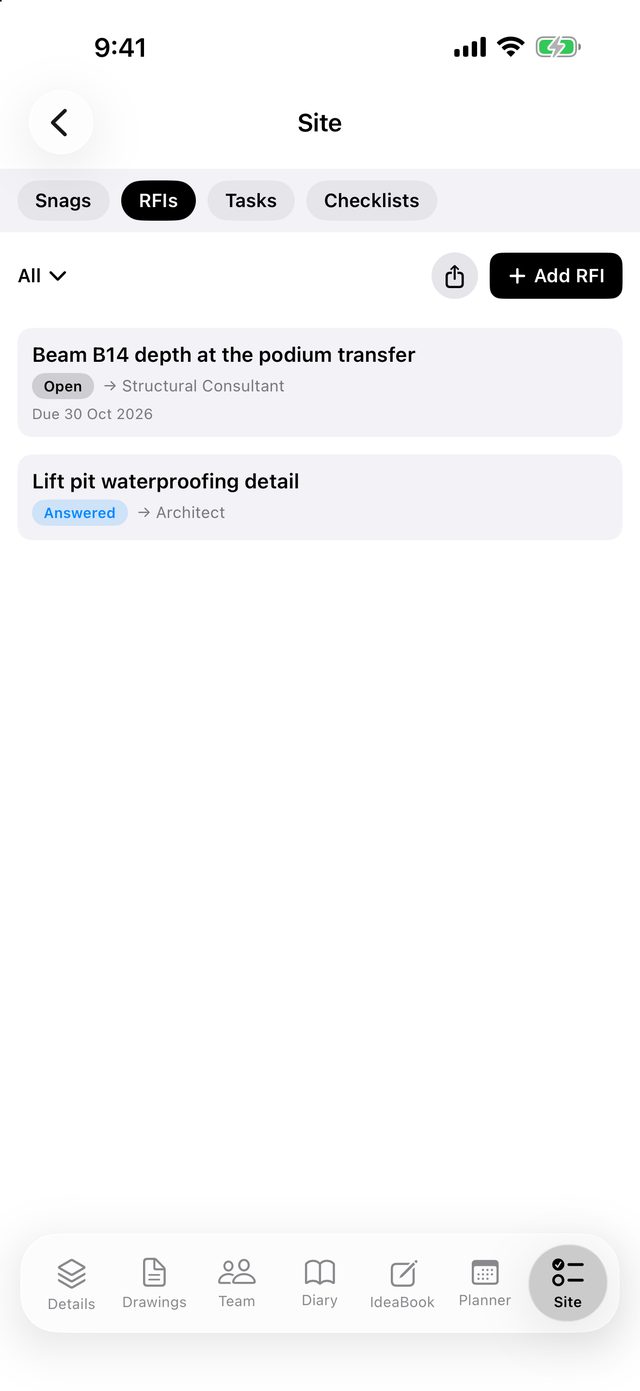
RFIs, answered on the record
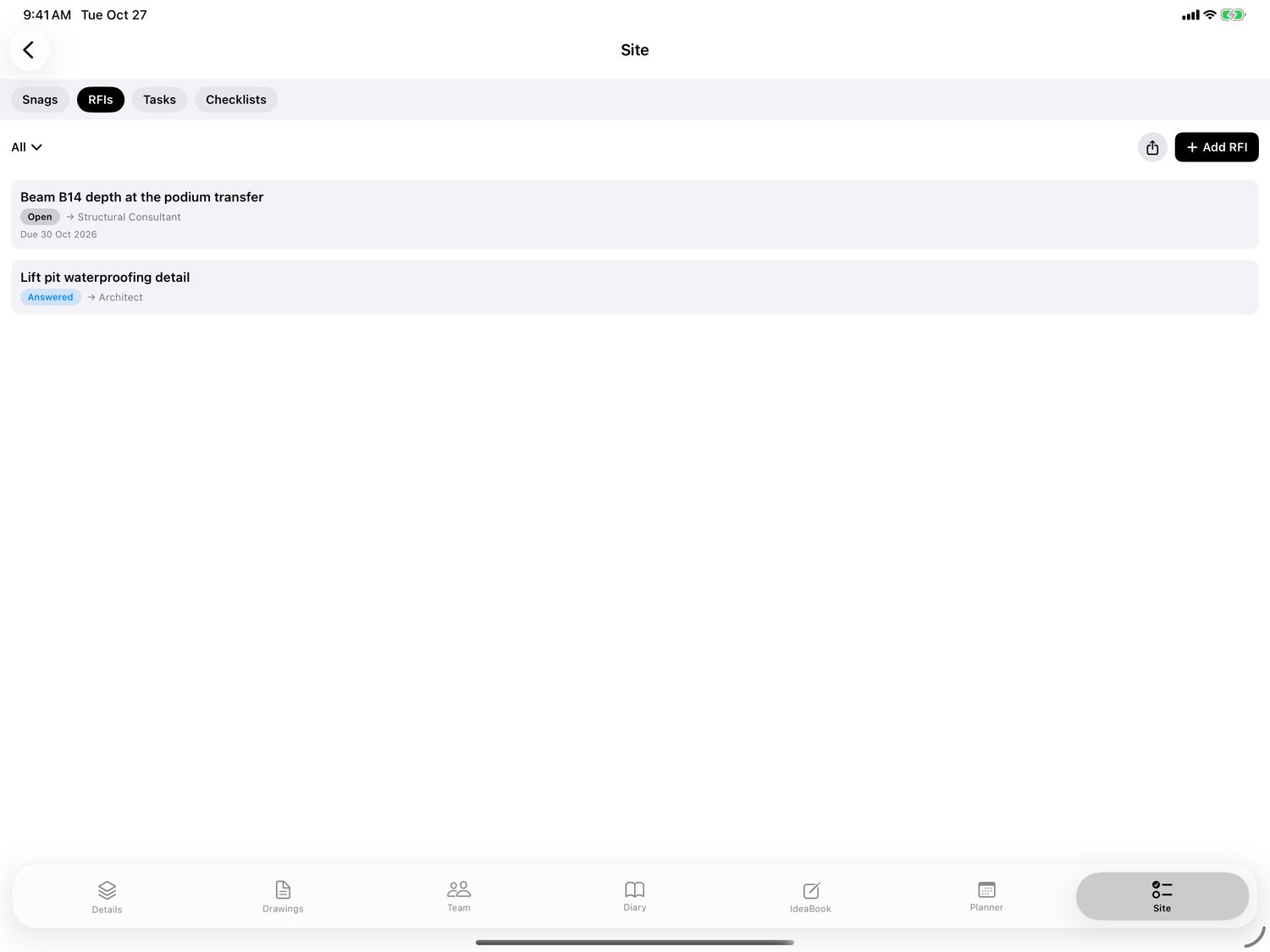
Raise a question to a consultant, track it until it is answered, and keep the response next to the question. Pin it to the drawing it is about.
Tasks the whole team can see
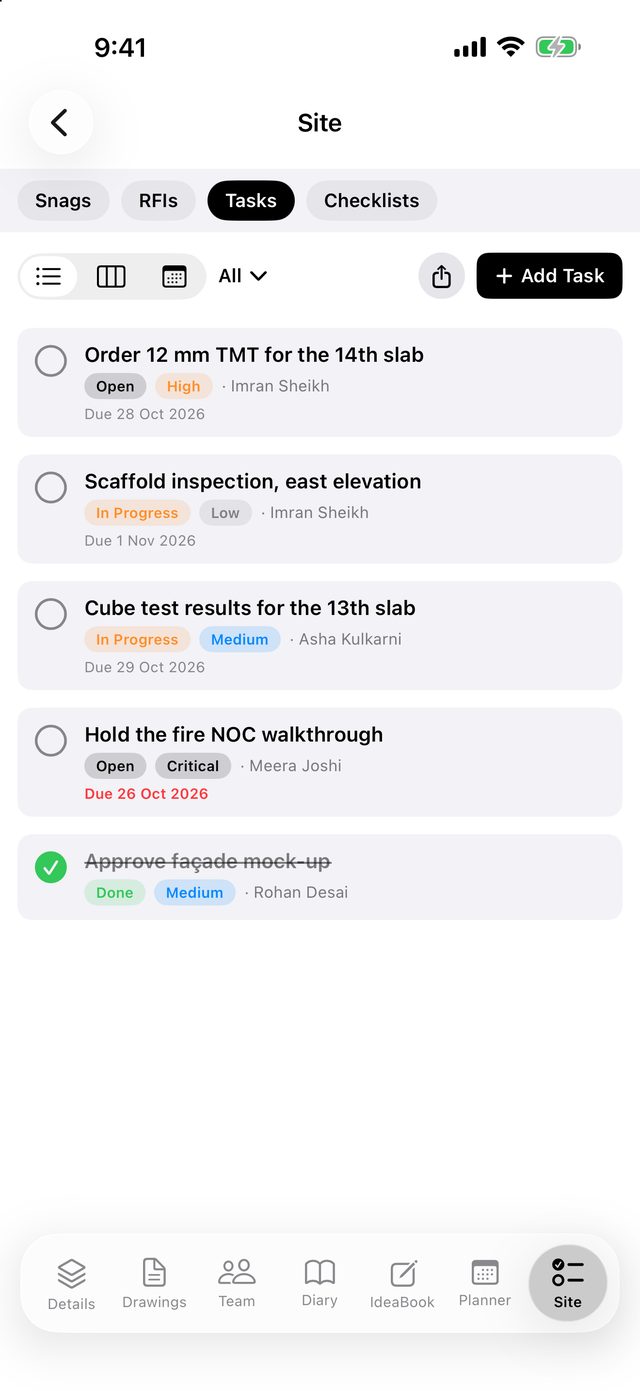
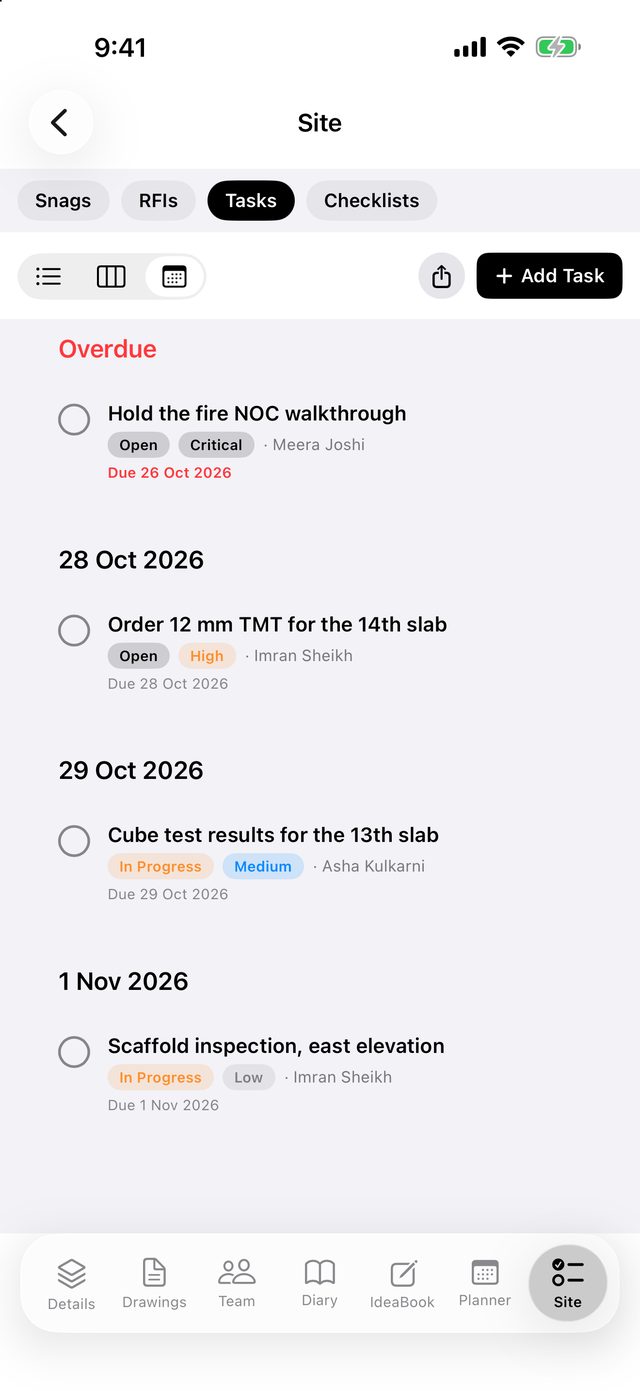
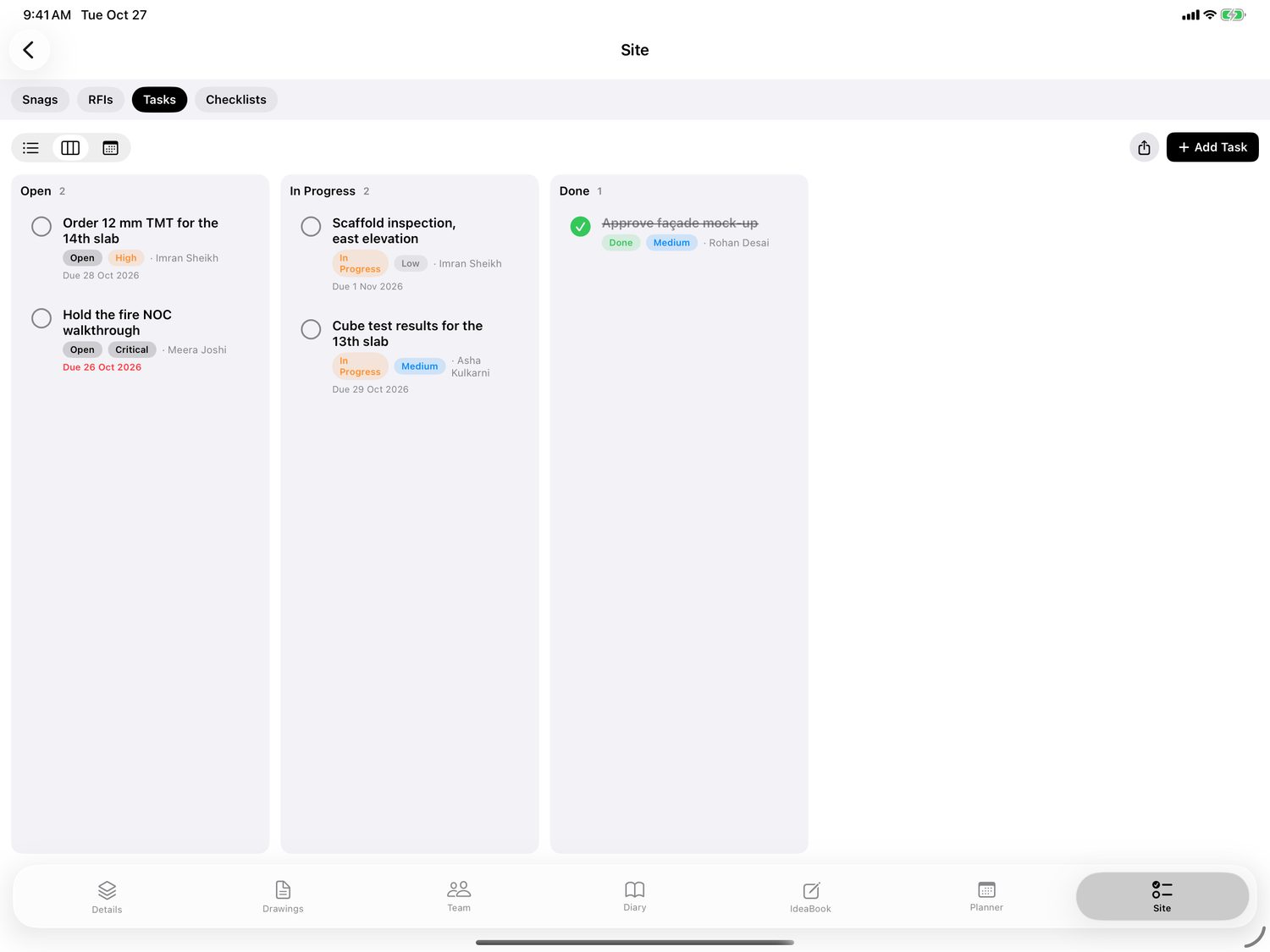
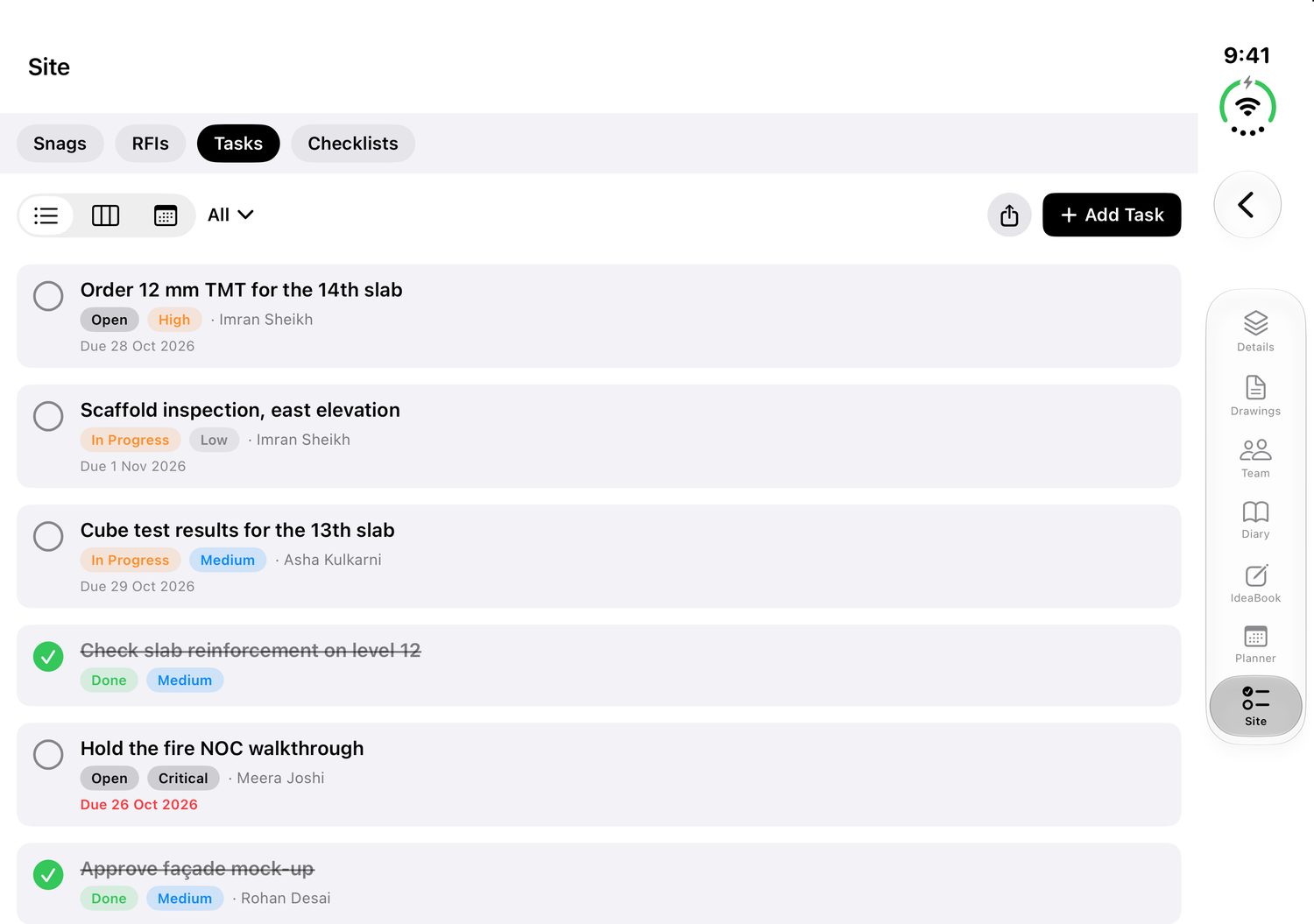
A shared to-do list for the site. Assign people, set priorities and due dates, and view it three ways: a list, a board you drag between Open, In Progress and Done, or a schedule grouped by due day with overdue work on top.
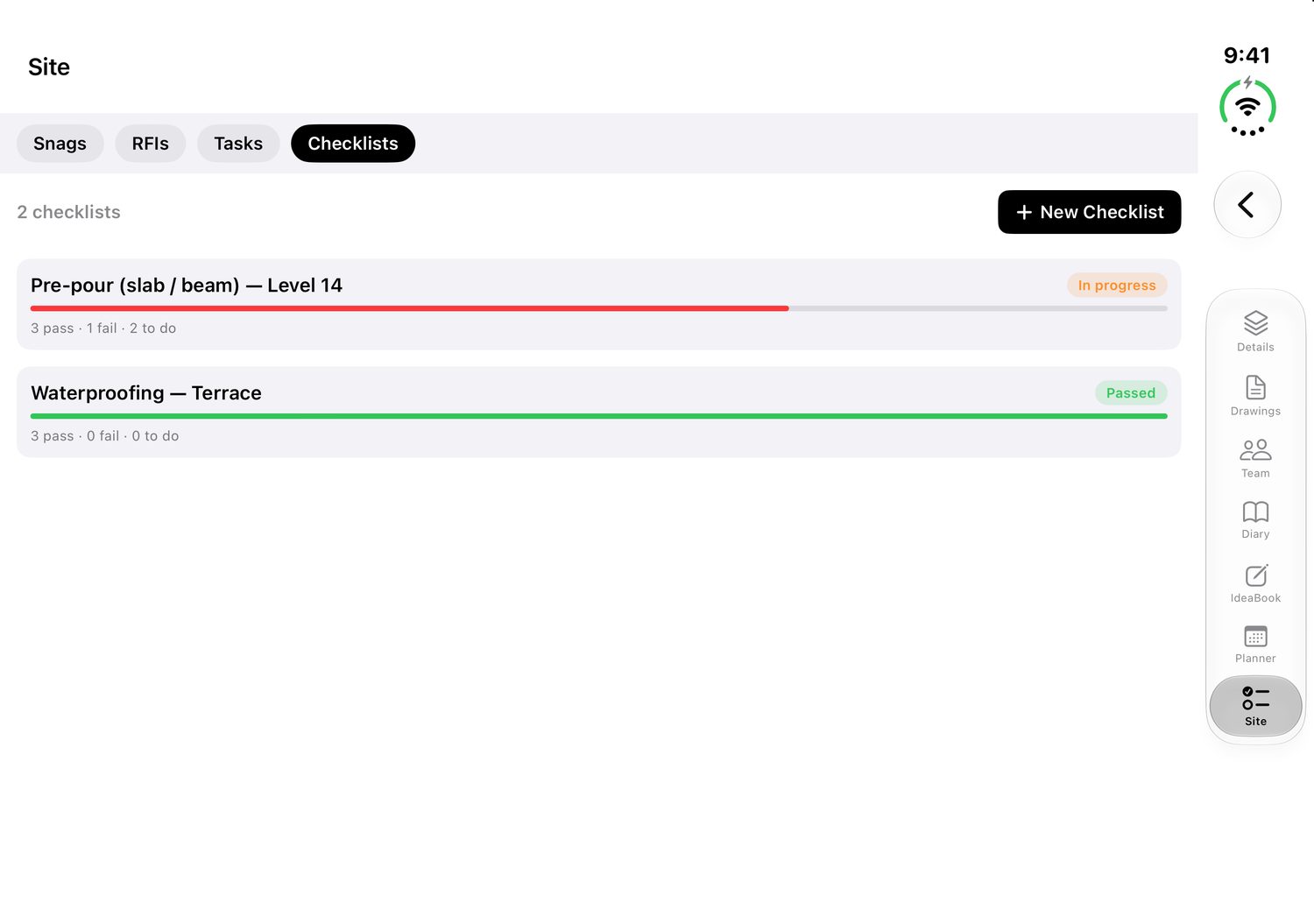
Inspection checklists, from templates
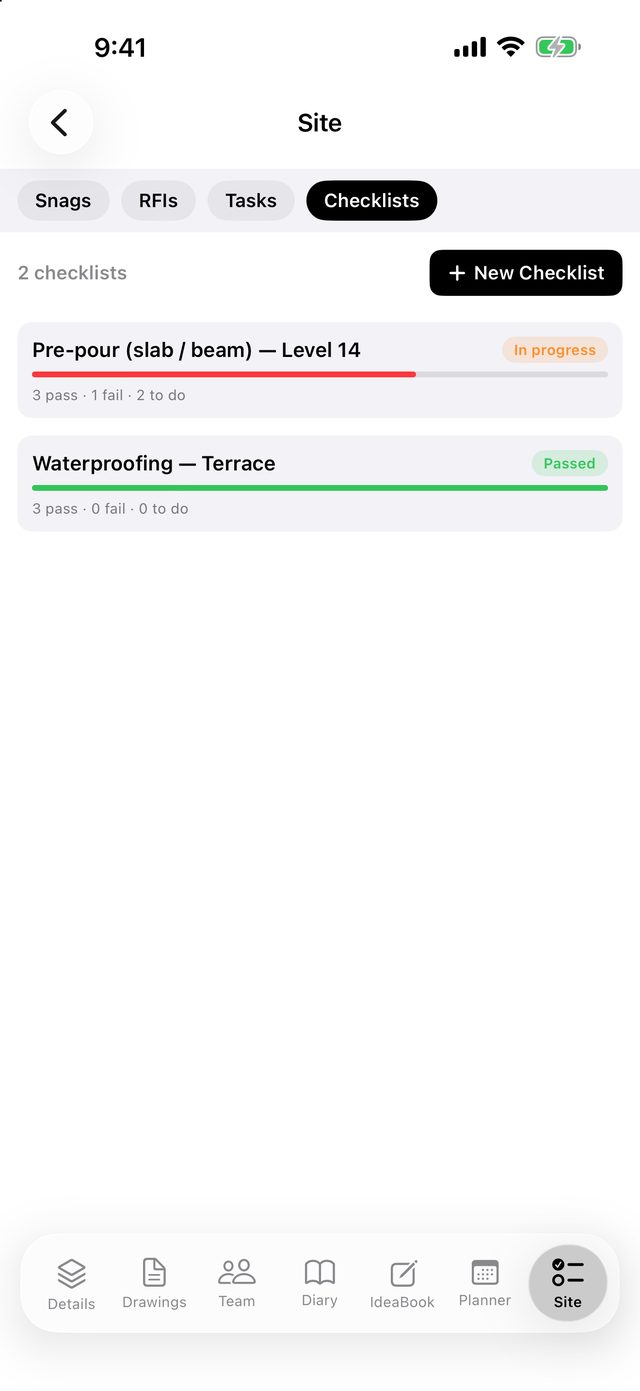
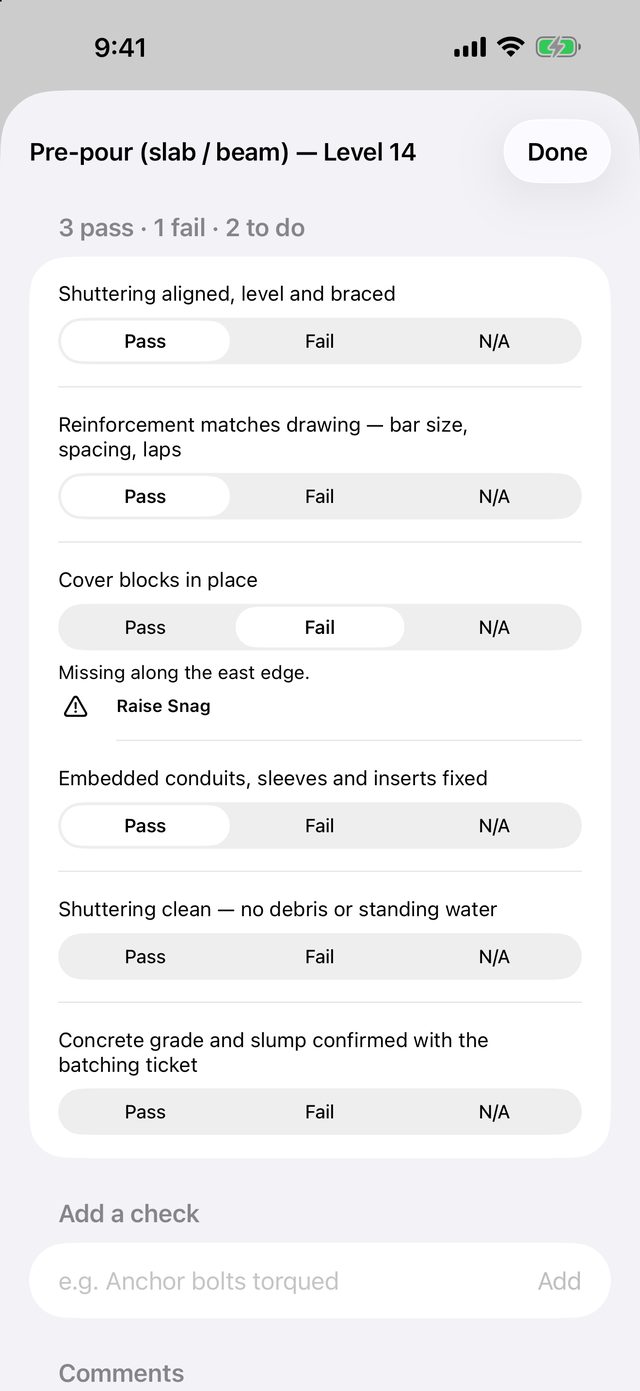
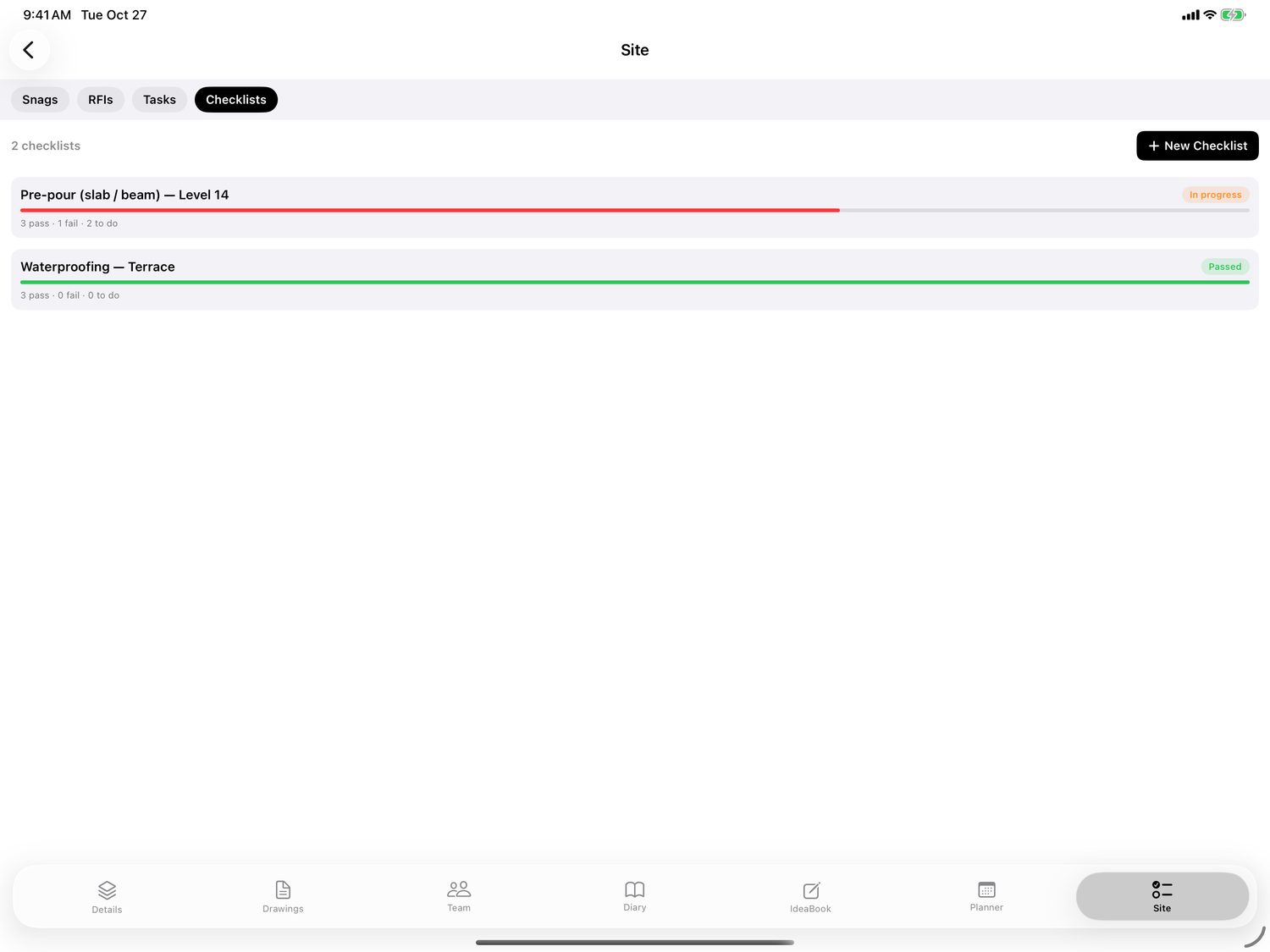
Start from a template — pre-pour, waterproofing, electrical conduit, handover walk-through, fire safety — or build your own. Mark each check Pass, Fail or N/A; a failed check can raise a snag in one tap, and the team is told when an inspection is complete.
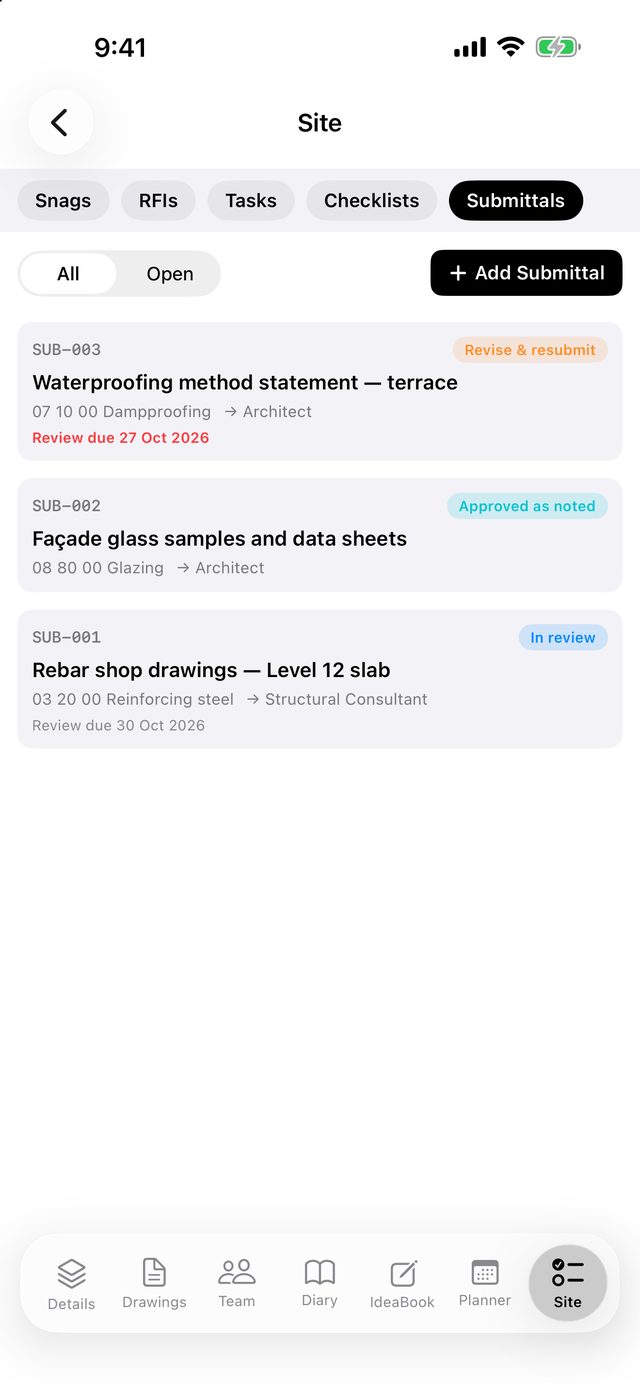
Submittals, tracked to a decision
Log shop drawings, samples, data sheets and method statements as they go out for approval. Each gets a reference (SUB-001), a reviewer and a review date, and moves from pending to in review to approved, approved as noted, rejected, or revise and resubmit. The reviewer's comments stay with it.
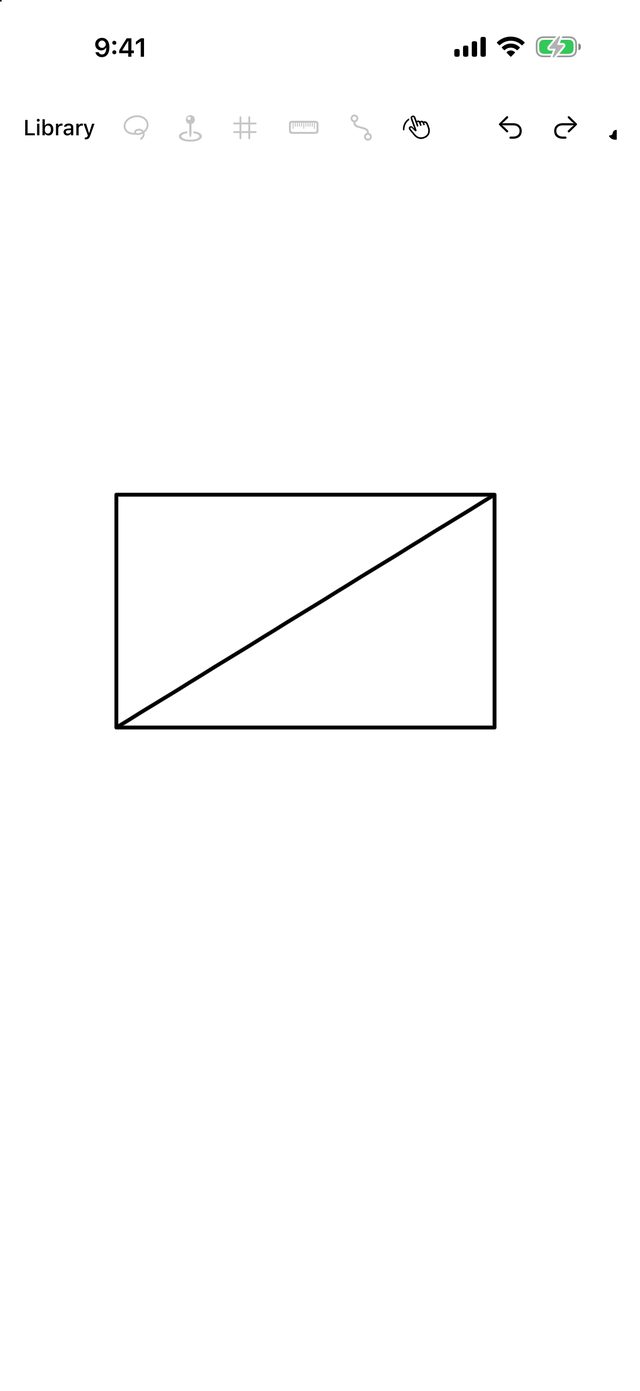
Sketch on any iPhone that has room for it
IdeaBook now opens on larger iPhones — Plus, Pro Max and Duo — with finger drawing and a toolbar that scrolls. Open any sheet from the viewer with Annotate to mark it up. On iPad, the full Apple Pencil canvas is unchanged.
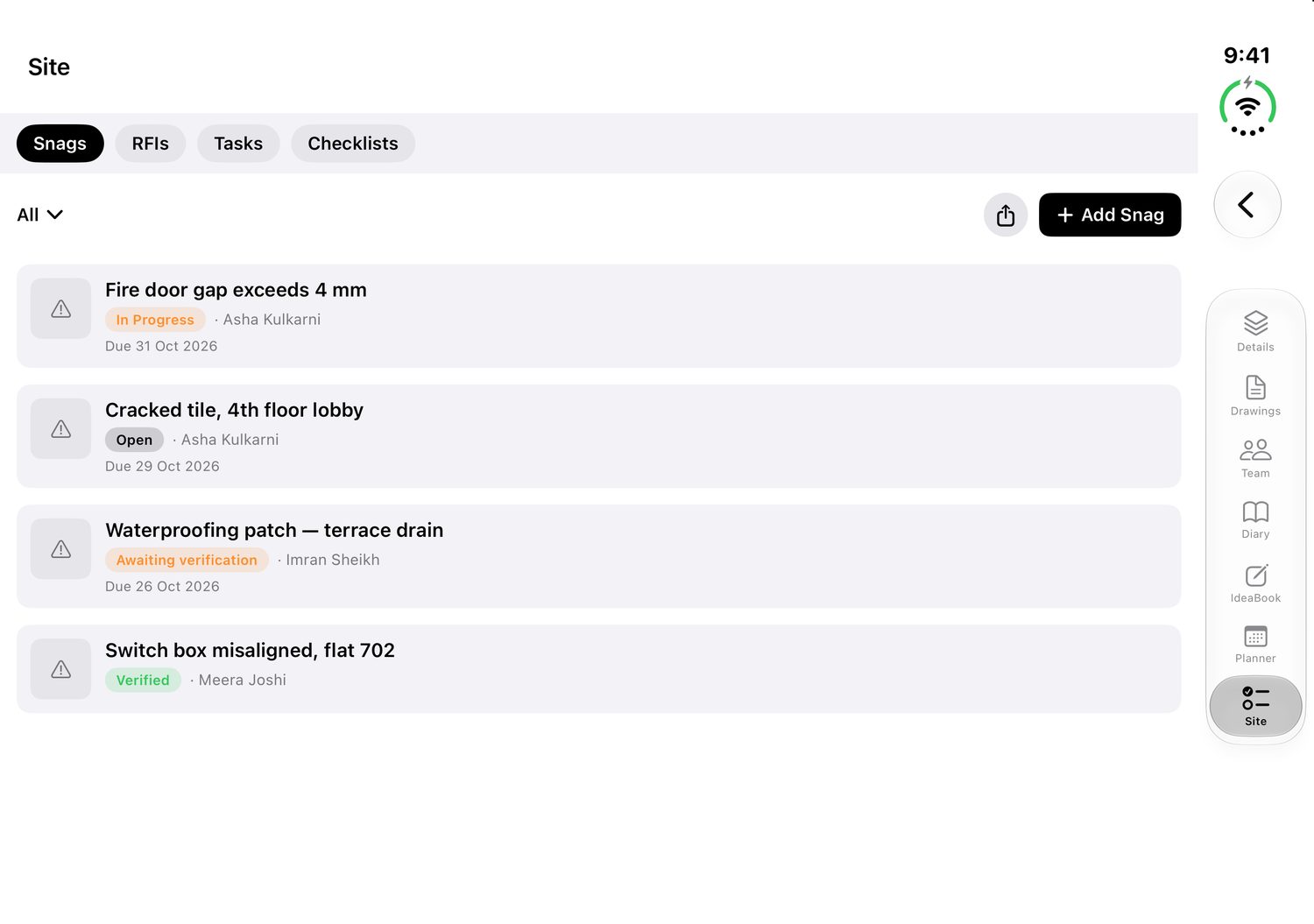
Built for the iPhone Duo
On iPhone Duo the project tabs stand upright in the side strip, so every screen gets the full height. The same layout adapts to iPhone and iPad without a setting to find.
And the details that keep a site honest
The smaller things that make the bigger ones trustworthy.
- Contractors see only their wingsThe owner can limit a member to specific wings. Their drawings, snags, RFIs and checklists are filtered by the server, not just hidden on screen.
- A first draft of the day's diaryOne tap turns what was logged today into a short diary entry you edit and keep. Only titles are sent, only after you confirm, and photos never are.
- 3D models and safety formsKeep USDZ models with the project and view them in 3D or AR. Safety checklists cover toolbox talks, work at height, hot work, scaffold, excavation and site induction.
- Assign to anyoneAny member can assign a task or snag to anyone on the project, the owner included.
- Comments and @mentionsDiscuss any snag, RFI, task or checklist in a thread. Tag a teammate and only they get the notification.
- ReportsExport snags, RFIs and tasks to PDF or CSV — filtered the way you are looking at them.
- RemindersDue-date and overdue reminders arrive on the device, even offline.
- NotificationsA teammate logs a snag, answers an RFI or uploads a drawing, and you know. An assigned item goes only to the assignee.
- Access that follows the teamRemove a member and their access to your shared files is revoked; add one and they see the earlier drawings and photos.
- Clear ownershipOnly the owner deletes a project or building; a file can be deleted only by whoever uploaded it.
- Sync you can seeAnything that failed to upload is flagged on the Site tab with a Retry button, so nothing quietly stays on one phone.
- Your storageTeam files stay in your own OneDrive or Google Drive; solo projects use iCloud.